Popups And Tools
This page documents popup windows and utility dialogs used across navigate.
File Saving Dialog (Misc. Notes Tab)

This dialog appears when acquisition starts in a save-enabled mode (non-continuous) with Save Data enabled. You can provide text in the Misc. Notes field to be saved alongside acquisition metadata.
File Saving Dialog (BDV Settings Tab)

Use this tab to configure BDV-related shear, rotation, and downsampling metadata. This information will be saved in the BDV XML file alongside acquired data when Save Data is enabled, enabling the correct spatial interpretation of your data in BDV and compatible tools. More about BDV can be found on the ImageJ website: https://imagej.net/plugins/bdv/.
Autofocus Settings

This popup configures autofocus behavior used by features. You can open it from Quick Launch Buttons or from the menu.
By default, autofocus runs in two passes: one coarse and one fine. The coarse pass uses larger step sizes to locate the best focus region, and the fine pass searches locally around that coarse peak. If the peak lies outside the defined search range, the routine currently does not expand the range automatically. The routine can run on different focusing axes when compatible stage hardware is available.
To run autofocus, press Start Autofocus. The focus metric is the Shannon entropy of the discrete cosine transform, which is used to find the region of highest contrast (best focus). Spline-fit and test-significance buttons are already present in preparation for additional intelligent autofocus functionality in future updates.
While an acquisition is active, press Stop Acquisition to cancel autofocus or the acquisition in which it is running. This uses navigate’s standard acquisition shutdown to stop acquisition threads and hardware before returning the controls to their idle state.
Start Autofocus is disabled while an autofocus routine is starting or running and is restored when autofocus completes. During a Continuous Scan, it remains available between autofocus routines so autofocus can be injected without stopping the live acquisition.
The Channel must be active in Channel Settings. Choose a Calibration action before pressing Start Autofocus:
Regular focuses the selected channel without calculating a channel offset.
Capture Reference focuses the selected channel, makes it the zero-defocus calibration channel, and retains its best-focus position for the current calibration sequence.
Populate Defocus focuses the selected channel and writes the difference from the previously captured reference into that channel’s Defocus value. Capture a reference first.
Auto Defocus uses the selected channel as the reference, focuses every other active channel, and populates all active channel offsets in one sequence. Stop any acquisition before starting it.
The popup’s Reference status reports the calibration reference. Populate Defocus requires the captured focus retained by the current popup session. The resulting per-channel Defocus values are stored with the experiment settings and are used during acquisition.
Waveform Parameters

Use this popup to configure waveform amplitudes, offsets, timing, and smoothing
used by Waveform Settings. The
Camera Delay value is measured in milliseconds and is saved in
waveform_constants.yml. It is shared by all microscope modes in the active
configuration.
Advanced Galvo Setting
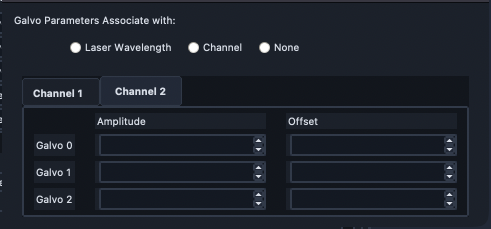
This advanced popup is opened from Waveform Parameters and provides channel-specific galvo amplitude and offset settings. When more than one channel is configured, each channel’s settings are shown on a separate tab.
Configure Microscopes

Open this popup from in Microscope Configuration. This window selects the primary microscope and helps inspect multi-microscope hardware assignments.
Advanced Stage Parameters

Open this popup from . It is useful for configuring stage limits, stage home/offset values, and axis flip flags used to align microscope coordinate behavior.
For coordinate-system setup guidance, see Microscope Coordinate System.
Tiling Wizard

The tiling wizard calculates tiled position grids from start/end coordinates, field-of-view size, and overlap. Open it from Multi-Position Buttons in Multi-Position.
Set axis start and end positions.
Confirm FOV distance and overlap.
Click Populate Multi-Position Table.
Advanced Camera Settings

Use this popup for advanced camera control options, including microscope selection and image-direction settings.
Camera Map Settings

This popup supports loading dark-frame stacks and generating camera offset/variance maps. More information can be found in the SNR Visualization Mode section of the developer deep dive.
Performance Diagnostics

Open from to inspect acquisition, display, and histogram timing behavior.
Adaptive Optics
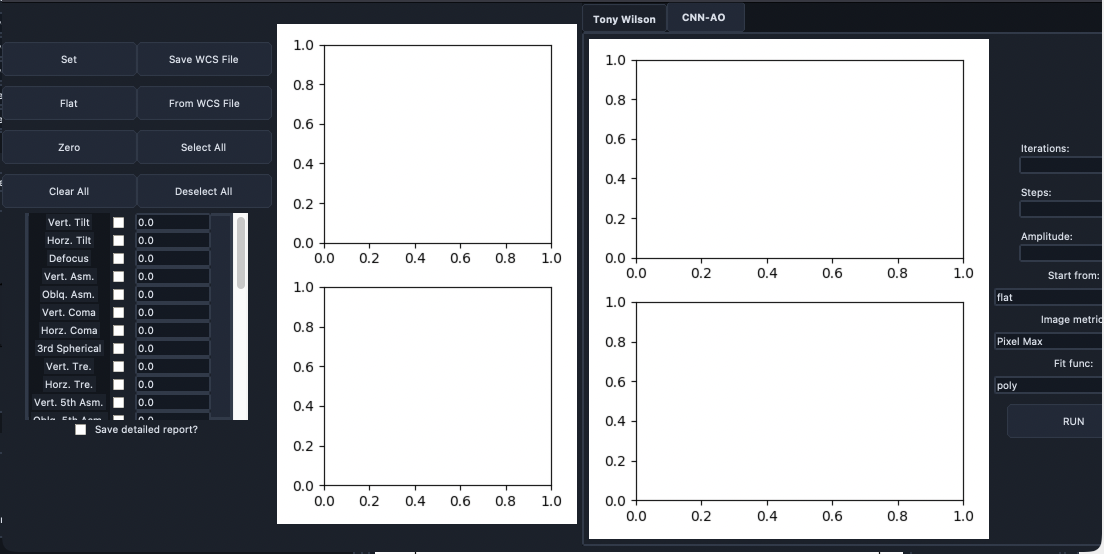
This tab contains iterative optimization controls and mode selection for adaptive optics routines.
Adaptive Optics (CNN-AO Tab)

The CNN-AO tab provides model-based adaptive optics controls within the same popup.
Feature List Popup

Use this popup to create feature lists, preview graph layout, and edit serialized feature content.
Feature Config Popup
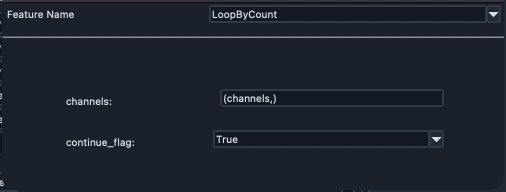
This popup configures the selected feature node and its arguments.
Feature Advanced Settings Popup

Use this popup to define and save advanced parameter mappings for feature arguments.
Ilastik Settings
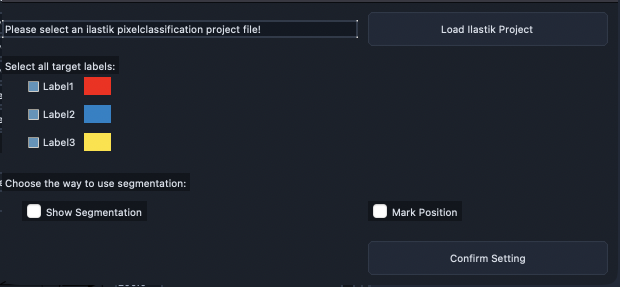
This popup configures ilastik project integration, target labels, and segmentation usage options.
Plugins Popup

This popup lists installed plugins and supports uninstall operations.